Test sequence
The test sequence module lists all tests in the order the tests are assigned to the currently opened project. Selecting a test from the test sequence or accessing via right-click at a test enables and shows the adjustment possibilities of the test. The selected test will appear with a blue background. Tests can be enabled/disabled individual with the checkbox beside the test name. The keyboard "DEL" button deletes the currently selected test. During the test execution, the currently processed task will be highlighted with a marker. Finished tests are highlighted with a green background. To create loops or forks within the sequence, a test can be placed via Drag and Drop above another test and will be displayed indented. As well as any other module the test sequence can be enabled/disabled in the menu, placed anywhere, automatically hidden or fixed in its position and stacked with other modules.
| Icon | Description | Information |
|---|---|---|
 |
Hide or display the Test Library | Can only be activated in the test sequence head |
 |
Rename the Test | - |
 |
Cut the currently selected test | - |
 |
Copy the currently selected test | - |
 |
Paste the cut/copied test | Only available if a test has been copied or cut before |
 |
Edit test | Only available when right-clicking on a test in developer mode. Opens the test in Visual Studio Code (see test editor) |
 |
Open test manual | Only available when right-clicking on a test that has a manual |
| Create empty test documentation | Only available when right-clicking on a test without a manual. Creates an empty test documentation from a template and opens it | |
 |
Export data | Only available when right-clicking on a test. Exports the data of the test with an export script selected in a dialog |
|
Export using test preset | Only available when right-clicking on a test with export settings. Exports the data of the test with one of its export settings (see test view) |
 |
Run test | Only available when right-clicking on a test. Executes selected test and clears previous data. Same as toolbar |
 |
Run test and append data | Only available when right-clicking on a test. Executes test and appends to previous results. Same as toolbar |
 |
Move up selected test | Can only be activated in the test sequence head |
 |
Move down selected test | Can only be activated in the test sequence head |
 |
Remove test | Deletes the selected test from the test sequence project |
 |
Select all tests | Can only be activated in the test sequence head |
 |
Deselect all tests | Can only be activated in the test sequence head |
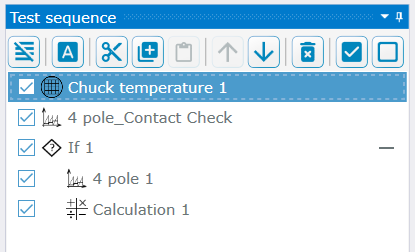
Test Sequence Example