Program settings
Program Settings#
The program settings allow the user to review the main Measmatic settings as the default directory for data and exporting or referencing files. The settings are placed in groups according to their characterization.
Device settings#

Program settings - Device settings
| Setting | Description |
|---|---|
| Initialize default TSP device when Measmatic starts | If checked and a Keithley TSP enabled device is part of the hardware configuration, it will be initialized automatically when Measmatic starts. |
| Dangerous Voltage [V] | Threshold of voltage to be set up by the user. A warning will be shown if exceeded during the measurement. |
Table: Program settings - Device settings
Remote control#

Program settings - Remote control
| Setting | Description |
|---|---|
| Enable JSON RPC remote control interface | Enables/Disables the JSON-RPC remote control interface |
| JSON RPC TCP port | Specifies the TCP port of the JSON-RPC remote control interface |
| Log JSON RPC communication | If enabled, the JSON-RPC communication is written to the log. Only shown in developer mode |
| Enable SCPI remote control interface | Enables/Disables the SCPI remote control interface |
| SCPI TCP port | Specifies the TCP port of the SCPI remote control interface |
| Send events (e.g. MeasurementFinished, TestStarted) | If enabled, Measmatic sends status events to the connected SCPI client |
Table: Program settings - Remote control
Changes to the remote control settings take effect only after a restart of Measmatic. See the remote control documentation for details.
User management#

Program settings - User management
| Setting | Description |
|---|---|
| Enable user management | Enables/Disables the user management. If enabled, the user login functionality in the Main User Interface will be enabled. The User management is available as administrator (see user manager) |
Table: Program settings - User management
Customization#

Program settings - Customization
| Setting | Description |
|---|---|
| Result label format | Defines the format of the labels of the measurement data rows (results table, diagrams, data files). The variables <SITE_COL>, <SITE_ROW>, <SUB_SITE>, <PIN_NAME>, <RUN_INDEX>, <MEAS_INDEX>, <SWITCH_STATE> and <DUT_INDEX> are replaced by the metadata of the row. Parts in square brackets are omitted when all their variables are empty. Can be overridden per project in the project settings (see project settings). |
| Enable Pin Tester specific functions | Shows the Pin Tester specific functions such as the pins and groups menu. Disabled by default. |
| Show last execution time in status bar | If enabled, the duration of the last execution is shown in the status bar. |
| Chart backend | Selects the component used to render diagrams (SciChart or ScottPlot). Changes take effect after restarting Measmatic. |
Table: Program settings - Customization
Project settings#

Program settings - Project settings
| Setting | Description |
|---|---|
| Test update behavior | Defines how Measmatic acts when a project is opened that contains tests that have a more recent version available in the test library. Options are: ignore test updates, inform about possible test updates in the log, ask for test updates or update tests without asking. |
| Select the first test after loading a project | If enabled, the first test of the test sequence is selected after a project has been loaded. Disabling this setting lowers the memory consumption when loading projects. |
| Default save data automatically | When a new project is created, the setting for "Save data automatically" will be set to the value defined here. |
| Default data directory | When a new project is created, the data directory will be set to the path defined here. |
| Default file name format | When a new project is created, the file name format will be set to the format defined here. |
| Default pass bin number | Bin number of the pass bin when the sorting table of a project is created (simple binning, see sorting table). |
| Default pass bin color | Color of the pass bin when the sorting table of a project is created (simple binning, see sorting table). |
Table: Program settings - Project settings
Measurement descriptions#
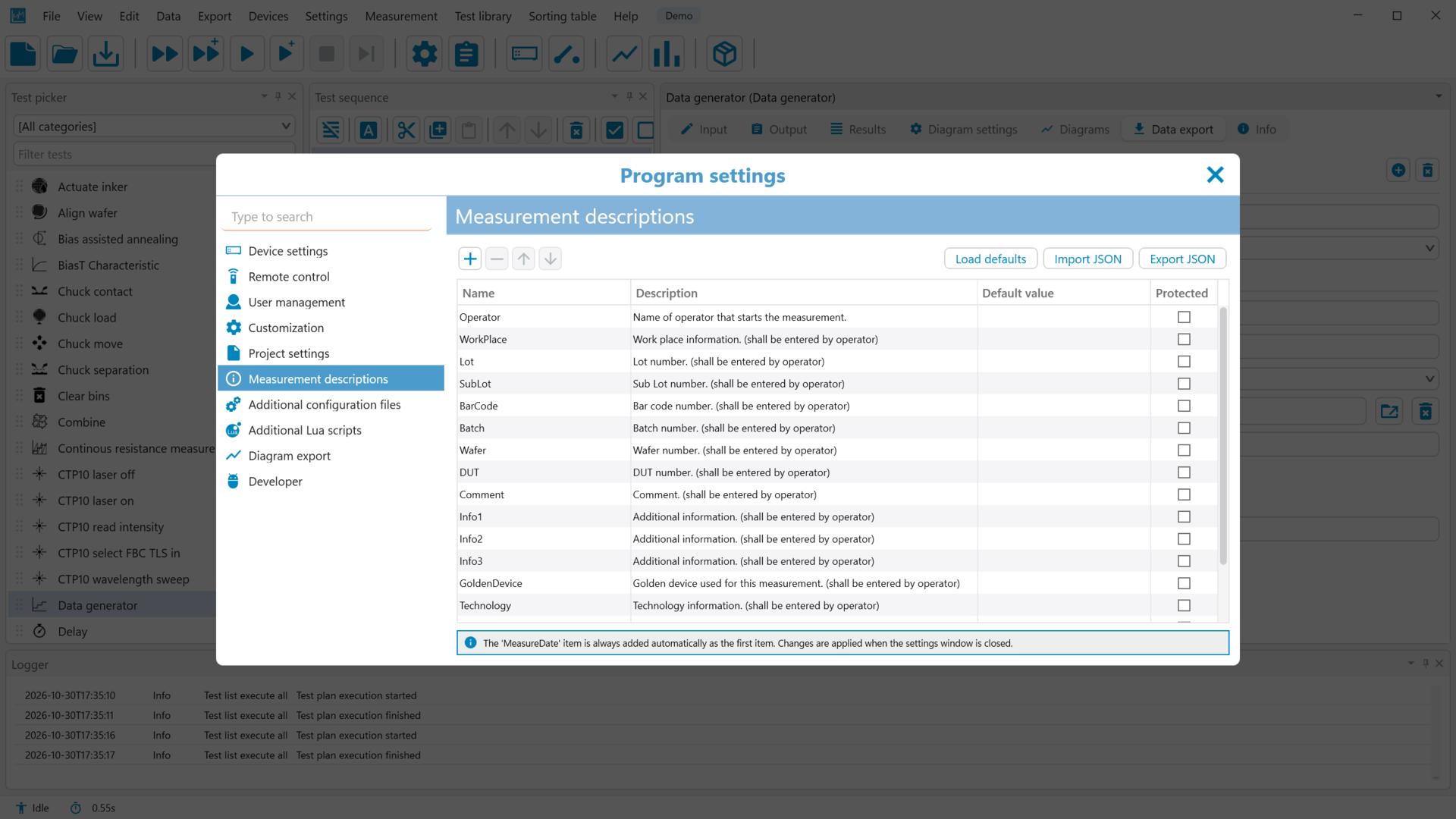
Program settings - Measurement descriptions
The measurement descriptions define the items of the measurement information (e.g. Operator, Lot, Wafer) that are stored together with the measurement data.
The item MeasureDate is always added automatically as the first item. Changes are applied when the settings window is closed.
| Column / Function | Description |
|---|---|
| Name | Unique name of the item |
| Description | Description of the item |
| Default value | Value the item is initialized with |
| Protected | If user management is enabled, the value of a protected item can only be changed by users with access level "Admin" or above |
| Add / Remove | Adds a new item or removes the selected items |
| Move up / down | Changes the order of the selected items |
| Load defaults | Replaces the list with the built-in default items |
| Import JSON | Replaces the list with items from a JSON file |
| Export JSON | Saves the items to a JSON file |
Table: Program settings - Measurement descriptions
Additional configuration files#

Program settings - Additional configuration files
| Setting | Description |
|---|---|
| Measmatic start script | User-specific script that can be loaded and executed when starting Measmatic application |
| Measmatic shutdown script | User-specific script that can be loaded and executed when closing Measmatic application |
| Machine pin file | Default Machine pin file that is used to assign Pins of a Keithley 37XX switch matrix (see machine pin editor) |
Table: Program settings - Additional configuration files
Additional Lua scripts#

Program settings - Additional Lua scripts
| Setting | Description |
|---|---|
  |
Add Lua scripts (e.g. to communicate with specific devices or using older Lua scripts) or delete a loaded Lua script file |
Table: Program settings - Additional Lua scripts
Diagram export#

Program settings - Diagram export
The diagram export settings are used when a diagram is saved as an image.
| Setting | Description |
|---|---|
| Image width | The width of the image in pixel. |
| Image height | The height of the image in pixel. |
| Image format | The file format of the image. Available options are png, jpg, bmp and xps. |
| Directory | The directory the image is saved to. |
| Filename | The file name of the image. The name can contain placeholders for different values which are determined when actually saving the image. A list of available placeholders can be shown by clicking on the blue info button. |
| Export one curve per image | If set, one image for each curve in the diagram will be saved. Be sure to set a suitable file name format when using this option to avoid overwriting the resulting image files. The file name must be unique for each curve. This can be achieved by using the index placeholder " |
| Export last test run only | If set only the curve defined by the data of the last test run will be saved to the image file. |
| Ask for file name on export | If set the file name will not be determined by the setting "Filename" but the user will be shown a save dialog where the image file name can be set. |
Table: Program settings - Diagram export
Developer#

Program settings - Developer
| Setting | Description |
|---|---|
| Enable developer mode | Enables the developer mode. Tests, Python devices and export scripts are edited and debugged in Visual Studio Code, and the developer menu is shown. More information can be found in the developer documentation. |
| Enable auto update of launch file | If enabled, the Visual Studio Code launch file (launch.json) used for debugging is replaced by the version shipped with Measmatic when Visual Studio Code is prepared for editing. Disable this setting to keep a customized launch file. |
| Python shell server port | TCP port used by the interactive Python shell (see developer menu). |
Table: Program settings - Developer