User Interface#
Measmatic Main UI#
The Measmatic main user interface is structured into the following main sections as shown in the figure below.
• Menu
• Toolbar
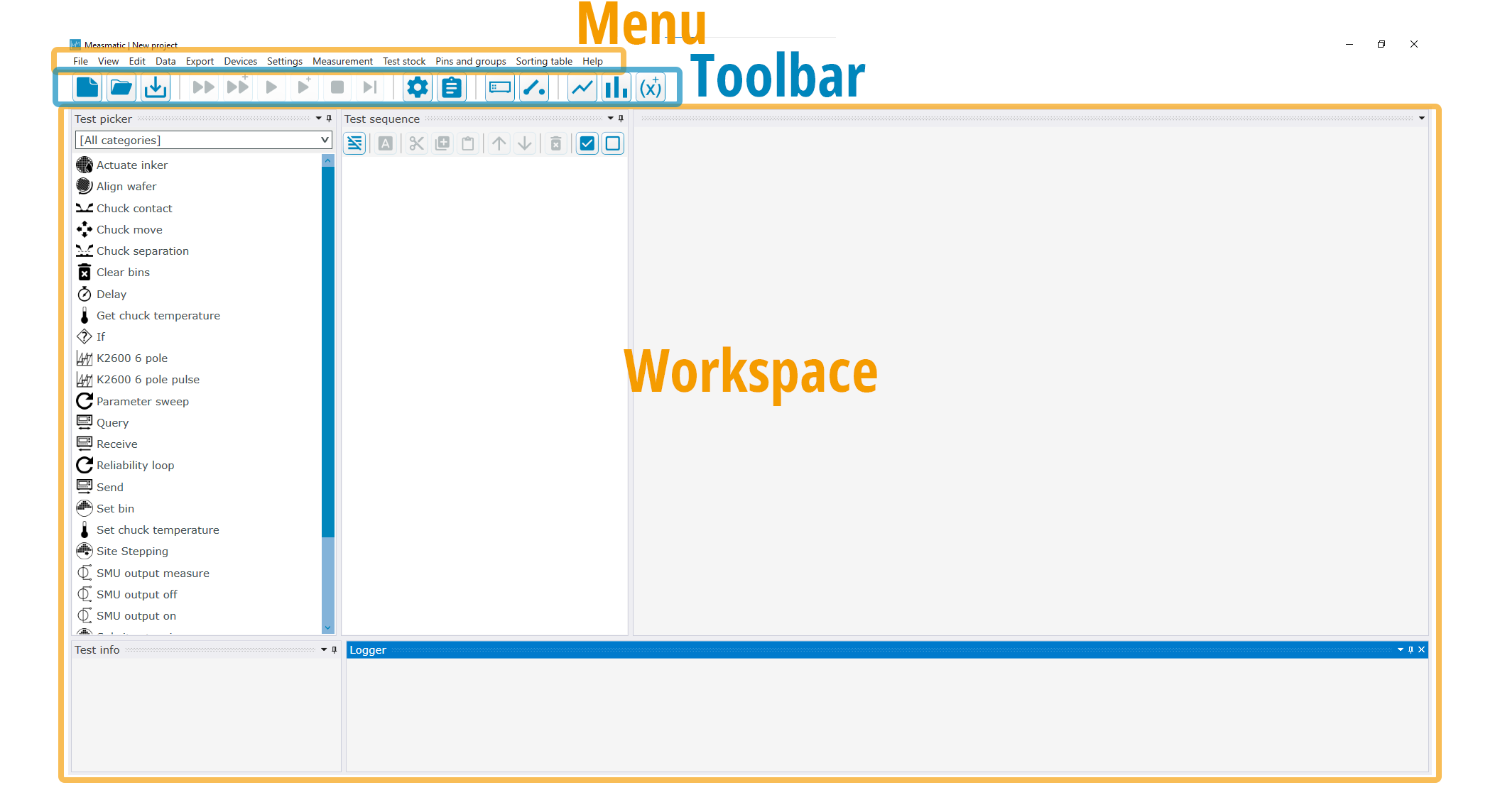
Main user interface
The menu bar gives access to all functions of Measmatic. The quick access toolbar gives access to the most important functions. The workspace can be adjusted by the user and shows different components (e.g. diagram, sequence) that are used within the current project. The status bar at the bottom shows important information about the project execution and the application state.
Basic User Interaction#
The interaction with Measmatic can occur by mouse/keyboard input or by touchscreen gestures. Touchscreen interaction requires additional hardware. The following table lists the basic operations.
| Operation | Mouse/Keyboard | Touch Action | Touch Action Description (Windows standard) |
|---|---|---|---|
| Data input | Keyboard | Screen Keyboard | - |
| Select | Left button click | Tap | Finger tapping on the screen |
| Action | Double click | Double Tap | Finger tapping on the screen twice |
| Context menu | Right button click | Tap and hold | Touching the screen for a few seconds |
| Drag | Left button + move | Finger drag | Move your finger over the screen |
| Scroll | Mouse wheel | Finger drag | Move your finger over the screen |
| Zoom | Mouse wheel | Zoom gesture | Move two fingers apart or together |
Input Operations
Status bar#
The status bar at the bottom of the main window shows information about the project execution and the application state. Items on the left side show the execution state, items on the right side show states that may require an action. Clicking an item with an action executes it.
| Item | Description | Action on click |
|---|---|---|
| Execution state | Shows whether Measmatic is idle, running or post processing (e.g. saving and exporting data) | - |
| Execution time | Duration of the last execution. Only shown if enabled in the program settings | - |
| Sorting bin | Bin of the last execution, colored green for pass and red for fail bins (see sorting table) | - |
| Project modified | The project contains unsaved changes | Saves the project |
| Test modified | A test of the project has been changed in the test library | Reloads the test library and updates the tests |
| Device modified | The code of a Python device has been changed | (Re)initializes the modified devices |
| Client connected | A remote control client is connected | - |
| User | Name of the logged in user. Only shown if user management is enabled | Opens the login dialog |
| Developer mode | The developer mode is enabled | Opens the program settings |
Table: Status bar items