Project settings
Project Settings#
The project settings menu is an overview of all general settings and Measmatic behavior during a test. The settings are placed in groups according to their characterization. Refer to the table below for a detailed description of all project settings.
Meta data#
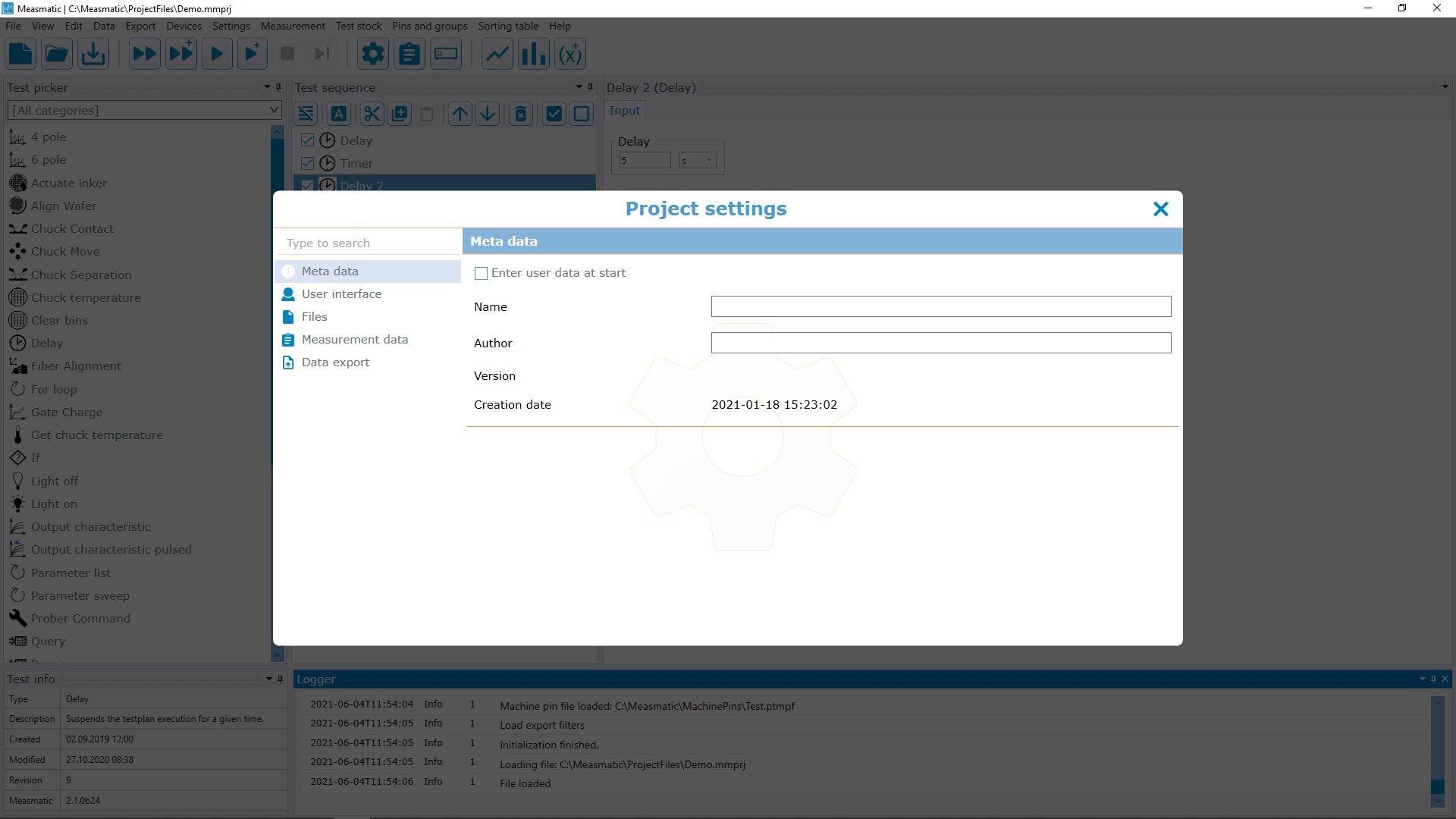
Project Settings - Meta data
| Function | Description |
|---|---|
| Enter user data at start | When executing a test, the Measurement Info page (see measurement information) will be opened in advance. The user can add information like a BarCode or Lot, input information will be stored in the test data output file |
| Name | User-defined name that will be stored in the test data output file |
| Author | Project author name that will be stored in the test data output file |
| Version | Project version that will be stored in the test data output file (not editable) |
| Creation Date | Creation date of the project settings that will be stored in the test data output file (not editable) |
Table: Project Settings - Meta data
User Interface#
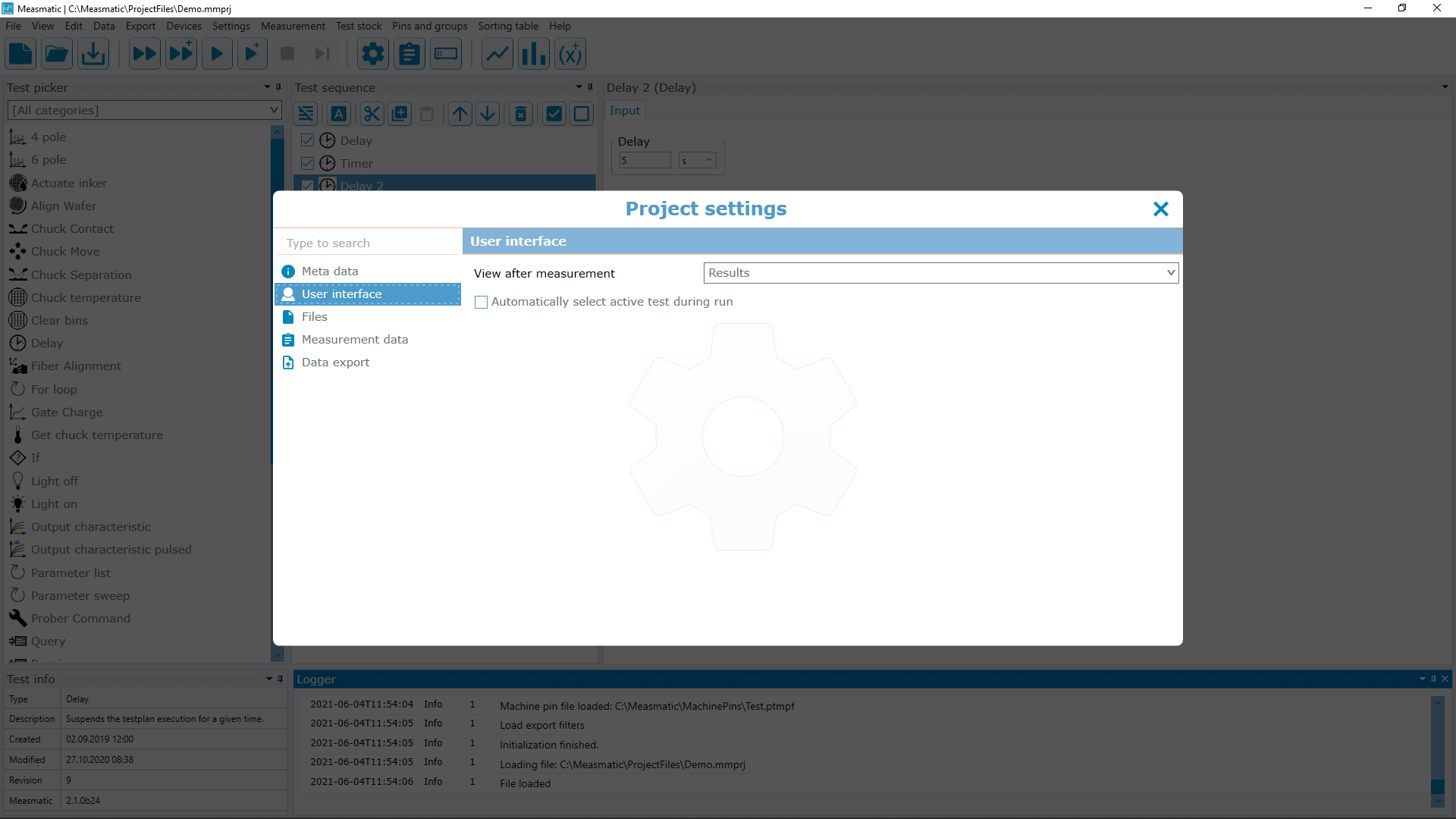
Project Settings - User Interface
| Function | Description |
|---|---|
| View after measurement | Defines the Measmatic default screen that will be brought to the front after the test is finished |
| Automatically select active test during run | Active test is selected automatically for faster editing |
| Result label format | Defines the format of the labels of the measurement data rows for this project. Overrides the program setting; leave empty to use the program setting (see program settings) |
Table: Project Settings - User Interface
Files#
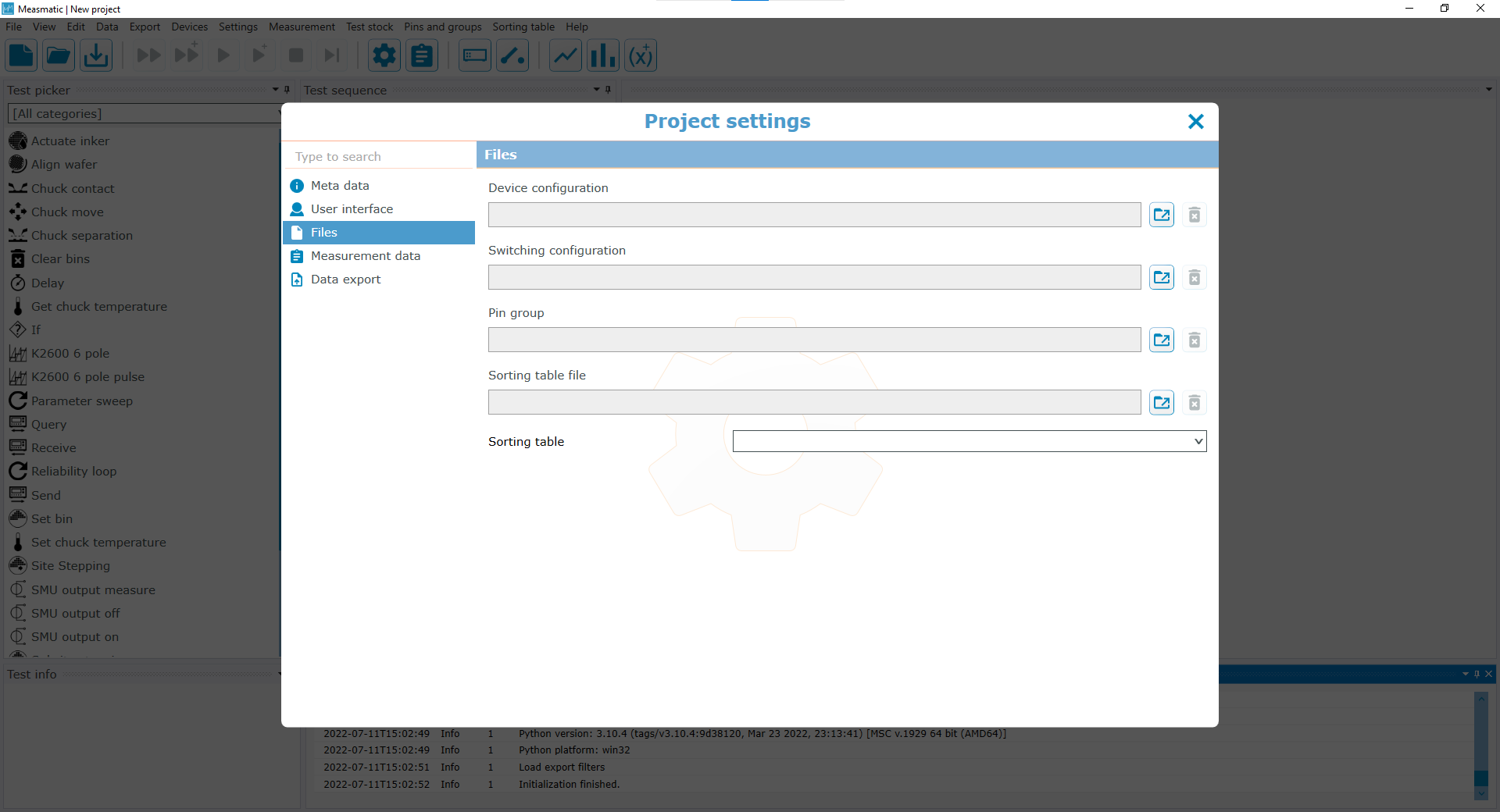
Project Settings - Files
| Function | Description |
|---|---|
| Device configuration | Select a device configuration file (*.mmcfg, see device manager) |
| Switching configuration | Select a switching configuration file (*.mmscfg, see switch configuration) |
| Pin group | Selected Pin group file (*.ptpgf, see pins-and-groups) |
Table: Project Settings - Files
Measurement data#
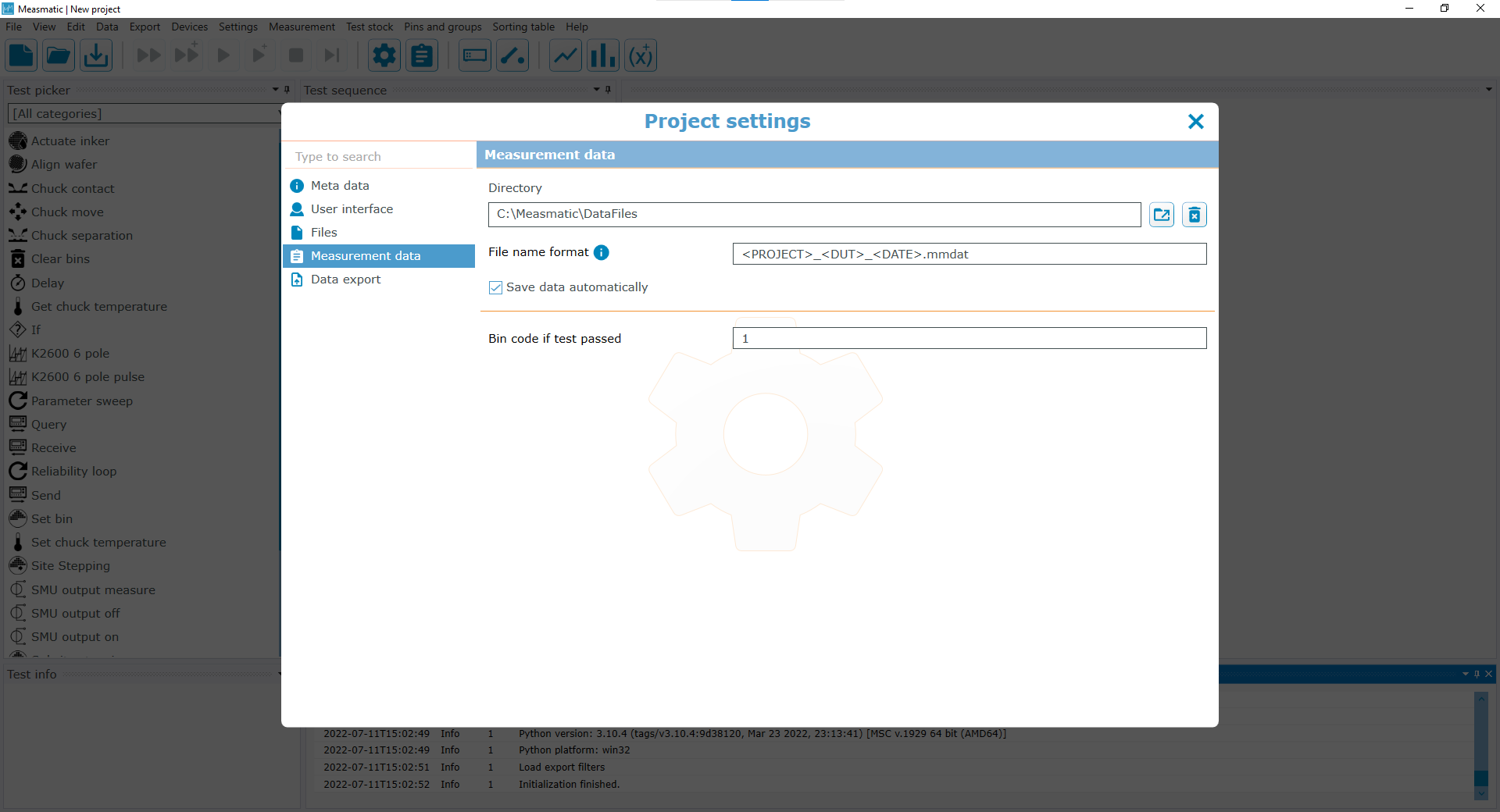
Project Settings - Measurement Data
| Function | Description |
|---|---|
| Directory | Directory where the measurement data will be stored |
| File name format | User-defined file name format for the measurement data file. Clicking the button will show a list of all allowed placeholders |
| Save data automatically | If enabled, the data will be saved automatically after a test sequence run |
| Show only last n runs (graph default) | If enabled, the diagrams show only the curves of the last n runs by default |
| Last n runs (graph default) | Number of runs shown in the diagrams if "Show only last n runs" is enabled |
Table: Project Settings - Measurement Data
Data export#
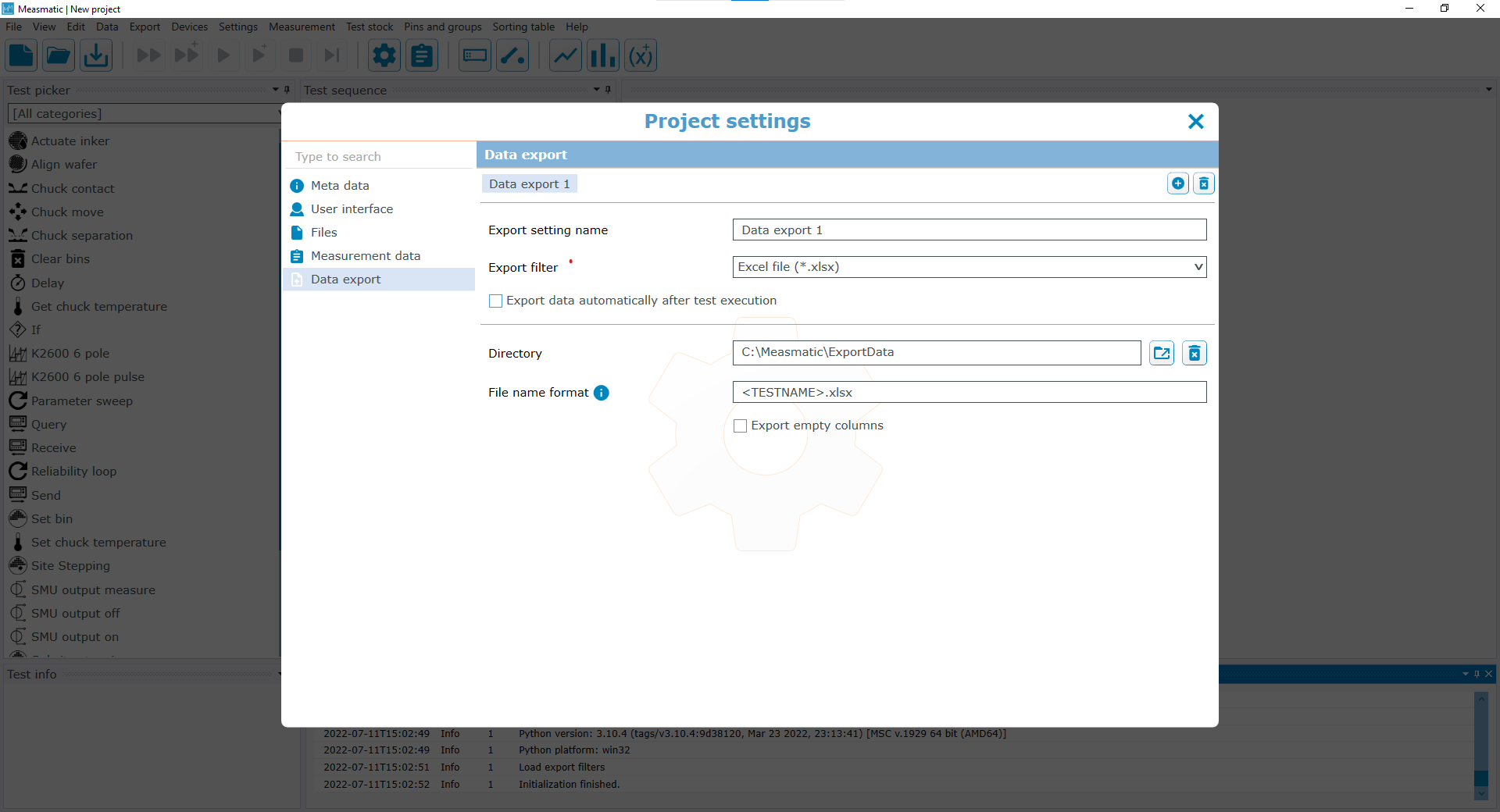
Project Settings - Data export
| Function | Description |
|---|---|
| Export settings (1 to n) | Allows several export settings (e.g. for saving as .xlsx and .png). Export settings can be added and deleted by the icons on the right side. |
| Export setting name | Name of the export setting |
| Export script | Export script that defines the format of the exported data |
| Export data automatically after test execution | If enabled, the data will be exported automatically after a test sequence run |
Table: Project Settings - Data export
Each export script may define its own settings which are then shown in the bottom part of this dialog. The example shows the options provided by the Excel export script.
Export settings for a single test are defined in the data export tab of the test view.